

Local processing. No uploads. No account needed.

Free Online Audio Cutter

Trim a song, voice note, or recording to the part you want to keep. Select a range on the waveform, listen to it, and download your clip.

Your audio workspace

MP3, WAV, M4A, AAC, FLAC, OGG, WebM · Up to 50 MB

Select your moment

00:00.000 / 00:00.000

Drag either handle, move the selection, or drag to select a new range. Preview stops at the end of the selection. Your download contains the selected section.

Selection

Original Duration 00:00.000

Selected Duration 00:00.000

How to Trim Audio Online

From a local recording to a clip you can use, in three steps.

Hand adjusting a fader on a mixing console
  1. 01

    Open an Audio File

    Choose a file from your device or drop it into the editor. A waveform appears when the file is ready.

  2. 02

    Choose the Section to Keep

    Drag the waveform handles or enter exact start and end times. Play the selection to check both ends of the clip.

  3. 03

    Download Your Clip

    Choose an output format, review the output duration, and select Download Audio.

Cut MP3 Files Online

Use the online MP3 cutter to save a chorus, an interview highlight, or another continuous section. Open an MP3 and preview the range you want to keep. Under Output format, choose MP3 and select a bitrate from 128 to 320 kbps. Then select Download Audio.

Audio editor using an editing controller at a studio desk

Control without the clutter

Fine-Tune Your Clip Before You Export

Set precise cut points, preview the selected audio, and adjust the sound before you download.

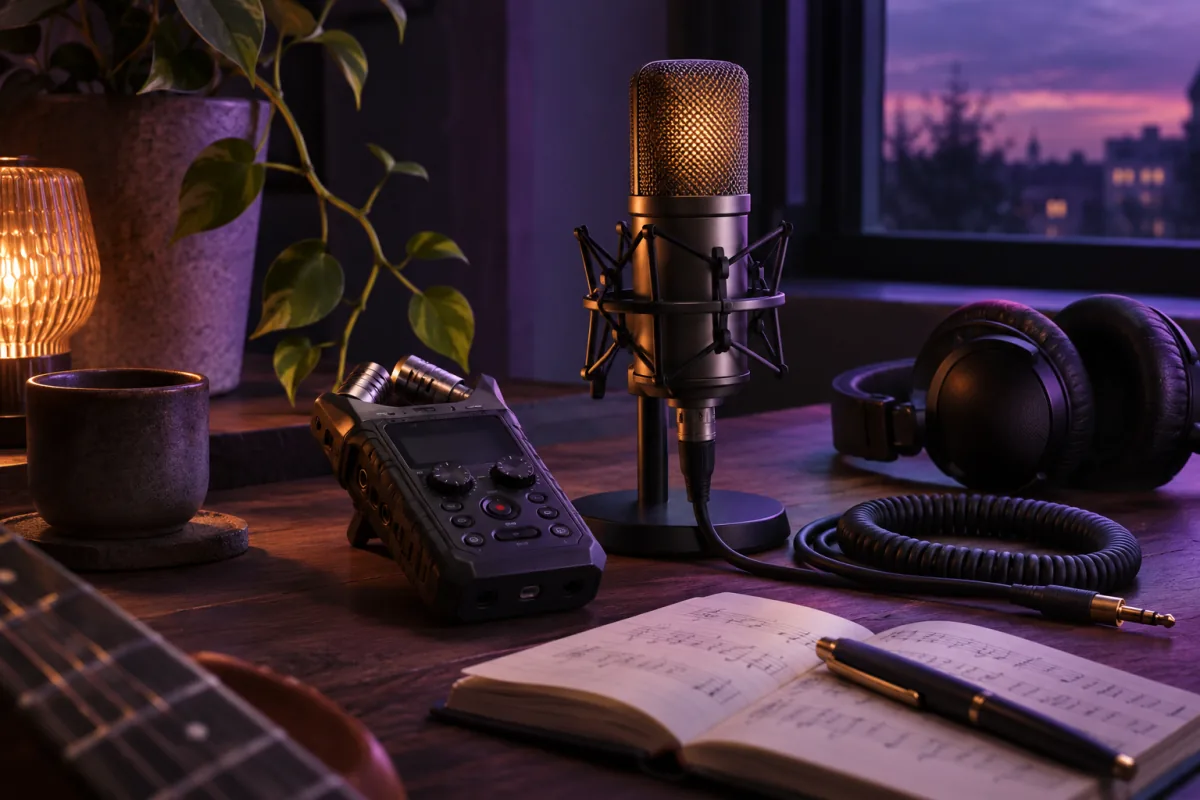
Portable audio recorder and condenser microphone on a walnut desk
01

Find the Cut in the Waveform

See the whole recording before choosing a section. Zoom into the waveform, drag either purple boundary or move the selected region. Start and end fields update with your selection, and accept precise timestamps down to milliseconds.

Waveform selection · Zoom · Millisecond timestamps

Choose Exactly What to KeepIllustrated selection · 1× speed
Leave the lead-in. Keep the moment.Leave the tail.

02

Preview and Export Speed Controls

The Audio Cutter separates listening from processing. Preview Speed ranges from 0.25× to 2× for checking a phrase. Export Speed ranges from 0.5× to 2× and actually changes the downloaded audio. A four-second selection exported at 2× becomes about two seconds.

Independent preview and export speed · Pitch changes with speed

03

Add Fade-In and Fade-Out Effects

Fade In raises the opening from silence; Fade Out lowers the ending to silence. Set each fade in seconds, or leave it at zero to keep it off. Adjust volume from 0–200% and preview the selection before downloading. Higher gain can cause clipping on loud recordings.

Fade In · Fade Out · Volume · Selected-region preview

For the things you make

Trim Songs, Recordings, and Ringtones

Two studio microphones across a podcast table with speakers’ hands and headphones

Cut a Chorus or Hook from a Song

Use the music cutter to save a chorus, a hook, or a short sample from a track you have permission to use. Preview both ends of the selection so the first note and the last sound have room to finish.

Listen to both edges of the selection. Leave enough room for the opening note and the last sound to finish.

CHORUS EXCERPT

20seconds to keep

00:42→01:02

Supported Audio Formats for Import and Export

Import
MP3, WAV, M4A, AAC, FLAC, OGG, and WebM audio, subject to browser support.
Export
MP3, WAV, M4A, FLAC, and OGG.

MP3

EASY SHARING

A practical choice for compact music clips, previews and everyday sharing. Choose 128, 192, 256 or 320 kbps. Higher bitrates usually mean larger files.

Lossy · 128–320 kbps

WAV

EDITING & DELIVERY

To trim a WAV file, choose the section you want to keep and select WAV under Output format. Export PCM 16-bit WAV when an editor or delivery specification asks for uncompressed audio. Expect a larger file than a compressed MP3 of the same length.

Uncompressed · PCM 16-bit

M4A

COMPACT AAC AUDIO

Use AAC in an M4A container for compact clips and workflows that accept this format. Choose 128–320 kbps and check the receiving app’s requirements.

Lossy AAC · 128–320 kbps

FLAC

LOSSLESS COMPRESSION

Keep the processed PCM without another lossy encoding step. FLAC compresses losslessly, though the final size depends on the recording and selected duration.

Lossless · Compressed

OGG

VORBIS WORKFLOWS

Export OGG Vorbis for games, applications and other workflows that support it. The Audio Cutter uses Vorbis quality 5. Playback support varies by browser and device.

Lossy Vorbis · Quality 5

Exports start from processed PCM 16-bit audio. WAV and FLAC avoid an additional lossy codec step; they do not restore detail missing from the source.

Trim Audio on Your Device

Your browser processes and exports the audio on your device. You can trim and download a clip without signing up or using credits. Save the clip before you close the page.

No audio uploadsNo account requiredNo credits used

Before you make the cut

Audio Trimming FAQs

Straight answers about formats, privacy, sound quality and the way this Audio Cutter works.

Is This Audio Cutter Free?

Yes. You can trim, preview, and download a clip without signing up or using MusicGo credits.

Is My Audio Uploaded?

Your browser processes and exports your audio on your device. Download the clip before closing the page.

Which Audio Formats Can I Trim and Export?

You can open MP3, WAV, M4A, AAC, FLAC, OGG, and WebM audio, depending on your browser’s decoding support. You can export MP3, WAV, M4A, FLAC, or OGG.

Can I Trim Audio on My Phone, and What Are the File Limits?

Yes. Use touch to drag the selection handles or enter precise start and end timestamps. Choose a file up to 50 MB on desktop or 20 MB on mobile. Decoded audio is limited to 40 million samples across all channels. Browser codec support and available memory vary; try a shorter WAV or MP3 copy if a file cannot be opened.

Can I Remove a Section from the Middle of an Audio File?

The editor exports one continuous section at a time. To save another passage, change the selection and export again. Joining the audio on either side of a cut requires a separate editing step.

Does Trimming Change Audio Quality?

MP3, M4A, and OGG are re-encoded with lossy compression. WAV and FLAC avoid another lossy encoding step. Choose a format that fits how you plan to use the clip.

Which Settings Affect My Downloaded Clip?

Export Speed changes the clip’s duration and pitch. Fade In, Fade Out, and Volume also apply to the downloaded clip. Preview Speed only changes how you listen in the editor.

Ready to Trim Your Audio?

Choose a file and select the part you want to keep.