AI Music Video
How to Make a Photo Sing with AI: A Step-by-Step Guide
On this page
A favorite portrait can become a birthday greeting, a character performance, or a short video for your latest song. To make a photo sing with AI, upload a clear portrait and a song to a singing photo generator, select the section you want, and generate a video of the face performing along with the audio.
MusicGo lets you use your own portrait or choose a preset character, trim your audio, and create a downloadable MP4. Your selected recording remains the soundtrack, so start with the voice and song you want to hear.
Here’s how to prepare your files, create the video, and check the result.
What You Need to Make a Photo Sing
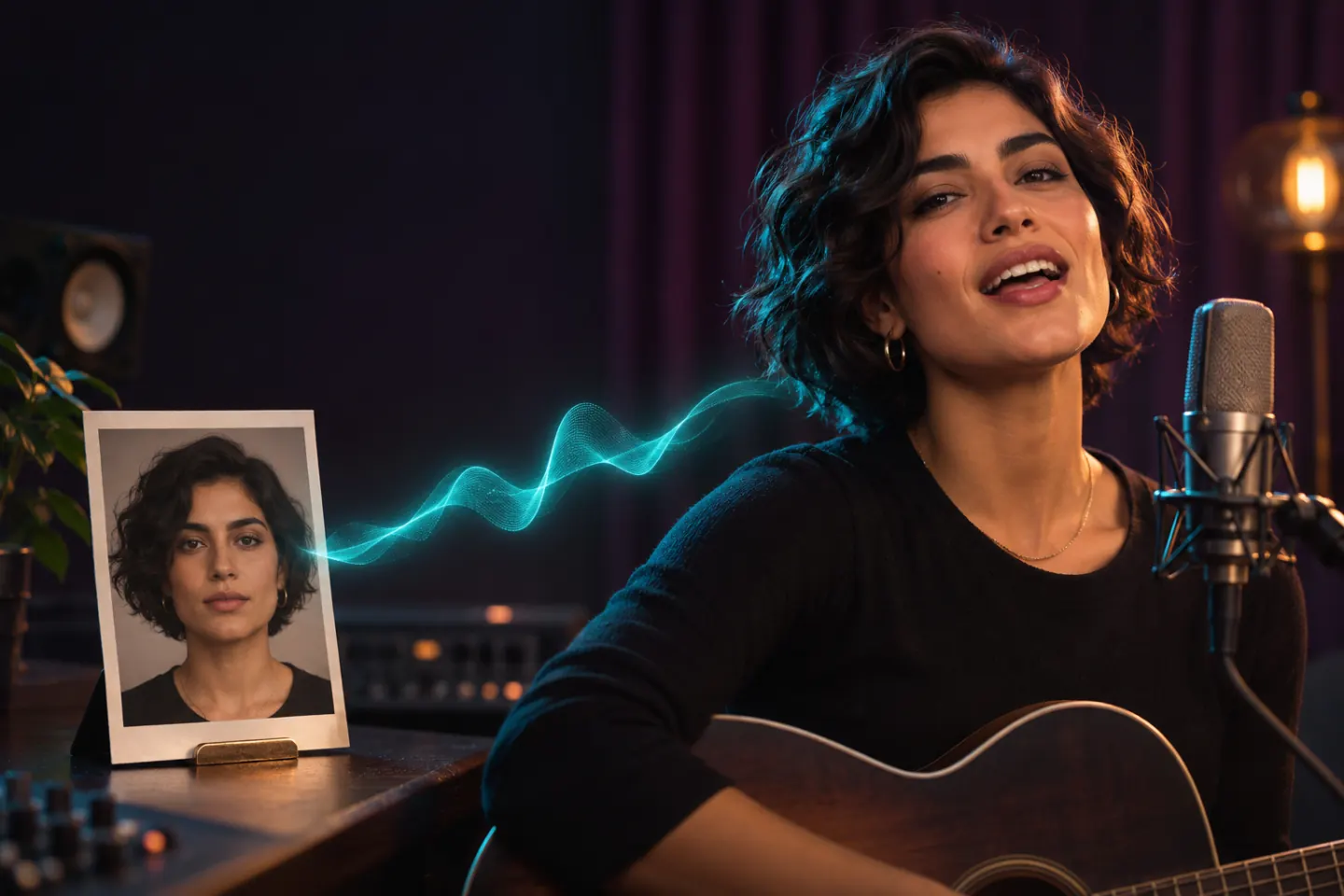
You need two main ingredients: a clear portrait and an audio recording with singing. The photo supplies the performer’s appearance, while the recording supplies the voice, lyrics, and music.
Choose a clear, front-facing portrait. Start with one visible face, even lighting, and an unobstructed mouth. Avoid a crowded group picture or a face hidden behind a hand, microphone, or other object.
Prepare the song you want the photo to perform. A recording with clear vocals gives the animation a clearer reference. If you want to make a photo sing a specific song, upload a recording containing those vocals. An instrumental track does not supply sung lyrics.
MusicGo supports the following inputs:
| Input | Supported files and limits |
|---|---|
| Portrait | JPEG, PNG, or WebP, up to 10 MB |
| Audio | MP3, WAV, M4A, or FLAC, up to 50 MB and 10 minutes |
| Selected audio segment | At least 10 seconds |
Use photos and music you own or have permission to use. If the portrait shows another person, obtain their permission where required.
How to Make a Photo Sing with AI in MusicGo
The MusicGo AI Singing Photo Generator brings your portrait and song together in a browser workflow. You can choose your performer, trim the audio, describe a scene, and select a vertical or horizontal video in 480p or 720p.
For a first attempt, try a short section with clear singing. A 10- to 15-second chorus gives you a manageable starting point before committing credits to a longer video.
1. Upload your song and select the section
Choose Upload song to add an audio file, or select a track from My songs.
Drag the waveform handles to mark the beginning and end of the section you want. Listen to the selection before continuing. Include the complete phrase you want the photo to perform, rather than starting halfway through a word or cutting off the final line.
You can also select the whole song if it fits the supported duration. Only your selected audio segment is processed.
2. Upload a portrait or choose a preset character
Select Upload portrait to use your own image, or choose a performer from Preset characters.
Pick an image that suits the purpose of the video. A personal portrait can work for a musical greeting, while a distinctive character can give an original song a visual identity.
The image determines who appears in the video. The audio determines whose voice you hear. Uploading your photo does not automatically make the song use your voice.
3. Set the scene, aspect ratio, and resolution
Add an optional video name so you can identify the result later.
You can also enter a scene description of up to 1,024 characters. Focus on the setting, lighting, and performance mood. For example:
A softly lit studio stage with a warm background and a relaxed performance mood.
The description guides generation, but the exact result can vary.
Choose 9:16 for a vertical composition or 16:9 for a wider frame. Then select 480p or 720p, depending on the resolution and credit cost you prefer.
4. Check the credit quote and generate
Sign in and review the quote on the Generate video button. The cost depends on your selected duration and resolution.
When the settings and quote are correct, submit the generation. Processing time varies with video length, the provider queue, and service availability.
5. Preview and download the video
When the video is ready, play it with the sound on. Check the song segment, mouth movement, and framing before downloading.
Saved videos remain available in My works, where you can play or download the MP4.
Choose a Photo and Song That Fit Your Idea
Start with the occasion or purpose, then choose your photo and audio together. A birthday message, character performance, and music teaser each call for a different combination.
The illustrations below come from MusicGo’s feature page and show possible creative directions.
Make a photo sing a birthday song
Pair an authorized portrait with a birthday song recording you have permission to use. Select a section that includes the greeting you want the recipient to hear.
If you want the message in your own voice, supply a recording of yourself singing it. MusicGo keeps the selected audio as the soundtrack; it does not change another vocalist’s recording into your voice.
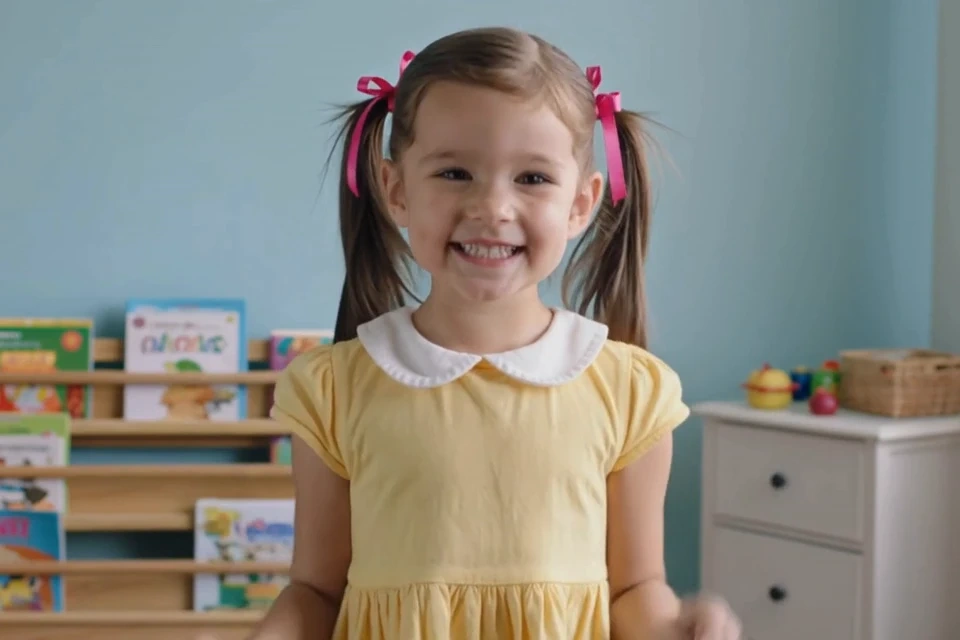
Illustrative birthday and celebration use case from MusicGo.
Give a character a musical performance
Use a character portrait and a short musical excerpt to create a performance around a visual identity. Choose an image with visible facial features, then use the optional scene description to suggest the setting and mood.
For an original song, you might pair a character with the chorus and describe a softly lit stage or an intimate studio. Start with a short clip to see how your chosen image and audio work together.
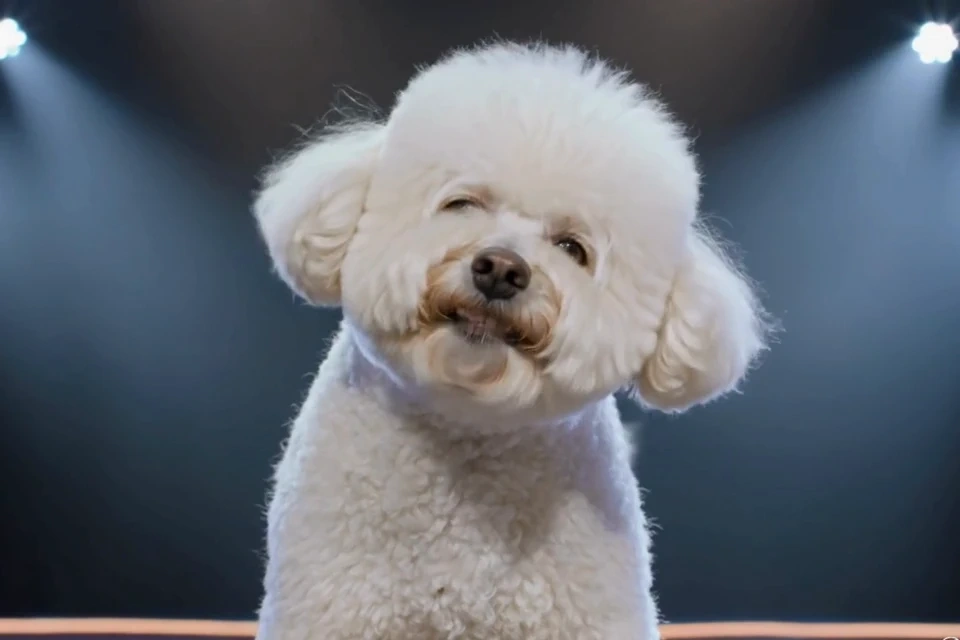
Illustrative character performance use case from MusicGo.
Create a chorus clip for your feed
Choose a chorus or another section that makes sense on its own. Listen carefully to the beginning and end so the clip feels intentional.
Use vertical 9:16 when you want a portrait-oriented composition for short-form feeds. Review the generated framing before publishing, especially if the face sits close to the edge of the source image.
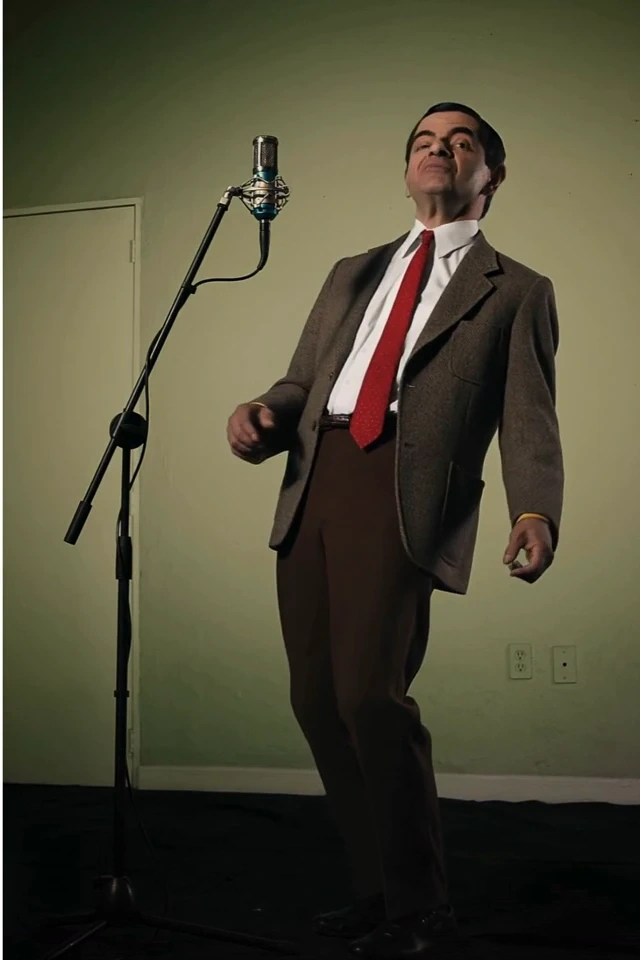
Illustrative social music clip use case from MusicGo.
How Many Credits Does a Singing Photo Video Cost?
MusicGo calculates the cost from the selected audio duration and video resolution. The published rates are 6 credits per second for 480p and 12 credits per second for 720p, with seconds rounded up and a 10-second minimum.
| Selected duration | 480p | 720p |
|---|---|---|
| 10 seconds | 60 credits | 120 credits |
| 30 seconds | 180 credits | 360 credits |
| 60 seconds | 360 credits | 720 credits |
Credit estimates are calculated using MusicGo’s published rates as of November 5, 2026. Rates may change. Check the credit quote shown before generating.
If your selection includes a fraction of a second, rounding may affect the total. Review the quote on the generate button before submitting.
For a first video, a short chorus uses fewer credits than a full song and gives you a chance to review your chosen portrait and audio together.
What to Check If Your Singing Video Looks Wrong
If the result does not match your idea, review the source files and settings before trying again. Start with the issue you can see or hear.
| What you notice | What to check next |
|---|---|
| Mouth movement is difficult to judge | Try a clearer, front-facing portrait with an unobstructed mouth |
| The performance does not follow the words as expected | Check that the audio selection contains clear singing rather than a long instrumental section |
| The clip starts or ends abruptly | Adjust the waveform handles and listen to both boundaries |
| The voice is different from what you expected | Listen to the source recording; the video retains that audio |
| The composition does not suit your intended post | Review whether 9:16 or 16:9 better fits the frame you need |
| The setting differs from your idea | Simplify the scene description and focus on the most important visual details |
These adjustments are starting points, and results depend on the image and audio. Change one input at a time when possible so you can judge whether it helped.
Also check your expectations about the soundtrack. MusicGo animates a portrait using your selected audio. To hear yourself singing, upload your own singing recording. To use another song, choose an authorized recording of that song before generating.
Make Your First Photo Sing
Choose one clear portrait and a short song section with audible vocals. Preview the audio boundaries, select your frame, and check the credit quote before generating.
Make a photo sing with MusicGo to create a musical greeting, a character performance, or a visual for your own song.