Music Editing
How to Remove Vocals from a Song and Keep the Instrumental
On this page
To remove vocals from a song, split the recording into a vocal track and an instrumental track. Keep Instrumental for karaoke or rehearsal. If you want the singing on its own, keep Vocals from the same split.
Before you download the instrumental, listen to the chorus and the places where the singer comes in. Those spots tell you more about whether the backing track will work for your rehearsal than an intro where the singer was already silent.

How to Remove Vocals from a Song in Three Steps
1. Upload the Version of the Song You Want to Use
Open the MusicGo Vocal Separator and choose or drop an MP3, WAV, M4A, or FLAC file. The upload limit is 50 MB, with a maximum audio duration of 10 minutes.
If you learned a particular studio or live version, start with that recording so you can rehearse against the arrangement you know. Use a recording you have permission to process.
2. Check the Credit Quote and Submit
MusicGo charges 1 credit per 10 seconds of audio, rounded up. A 60-second file costs 6 credits. Add one second and it costs 7. Check the quote shown for your file before starting the split.
| Audio duration | Vocal separation cost |
|---|---|
| 8 seconds | 1 credit |
| 60 seconds | 6 credits |
| 61 seconds | 7 credits |
| 2 minutes 30 seconds | 15 credits |
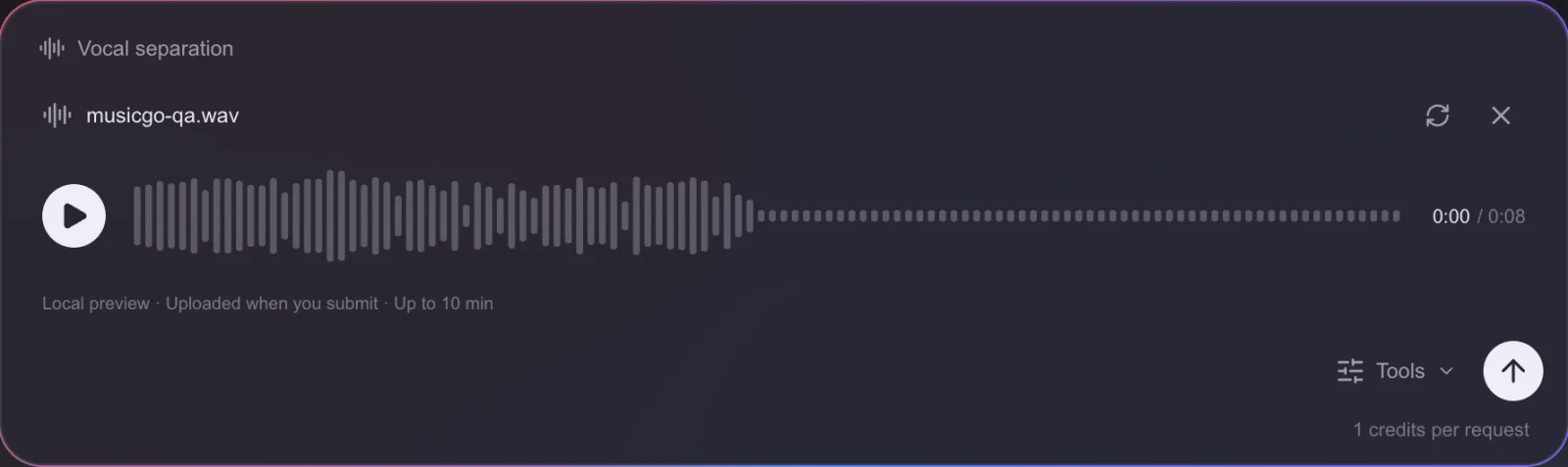
MusicGo Studio shows the selected file, its duration, and the credit quote before submission.
3. Play the Results and Download the Track You Need
Once the task is complete, open the creation details. Play Instrumental if you want the backing music, or Vocals if you want the voice. Download the track you need after listening to it.
In the test documented in this walkthrough, MusicGo processed an eight-second WAV for one credit and returned two separately playable and downloadable MP3 files. The downloaded format can differ from the input format.
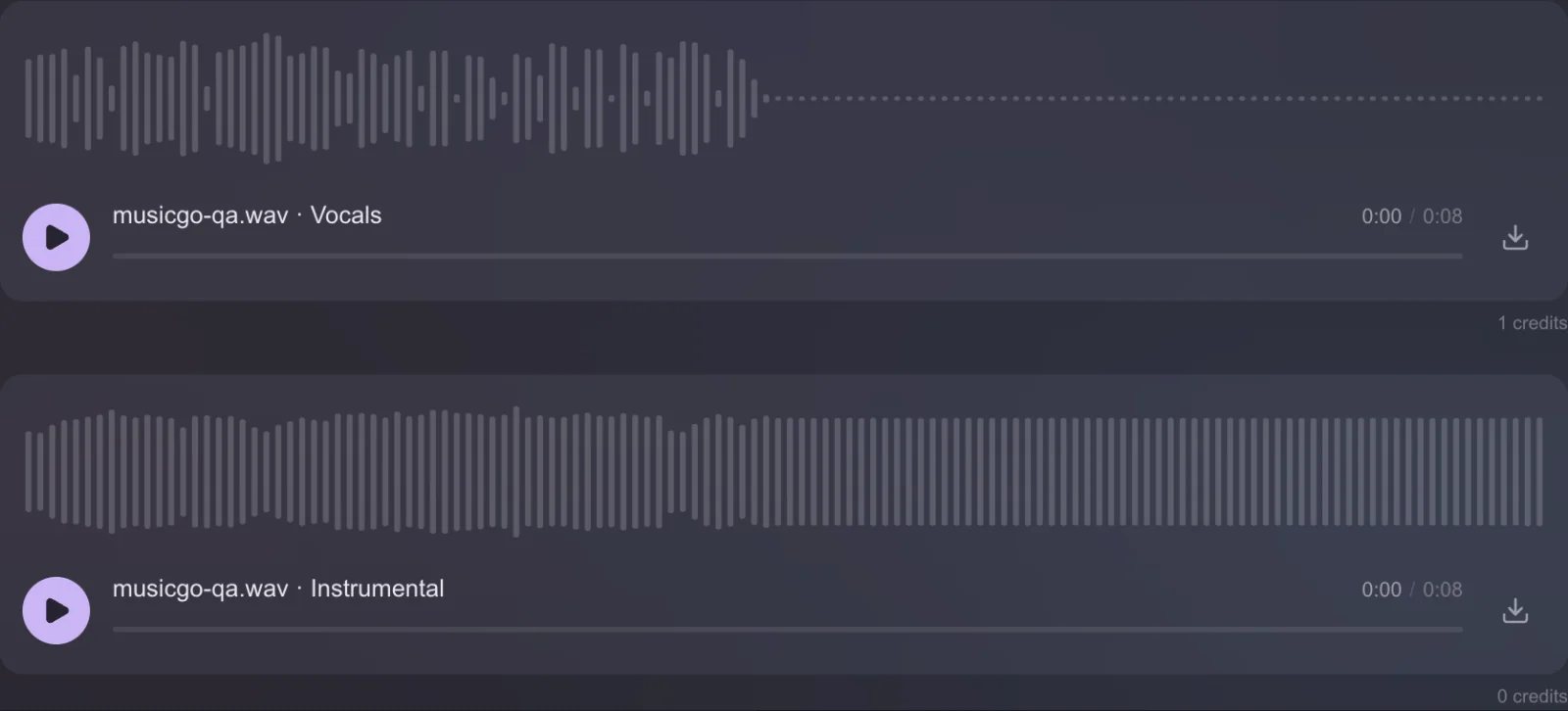
The completed example returns a Vocals track and an Instrumental track.
How to Get the Instrumental of a Song
If you want to make a song instrumental, start by playing the Instrumental result. Try singing through the first line you plan to rehearse. Check that the backing track still gives you the rhythm, chords, and entry cues you need.
Which Track Should You Keep?
| What you want to do | Track to keep | What to listen for |
|---|---|---|
| Sing over the backing music or rehearse a cover | Instrumental | Check that the beat, chords, and cues are clear enough to follow. |
| Study the singer’s delivery, transcribe lyrics, or try a remix | Vocals | Check that the words and phrasing are clear, and listen for instruments underneath. |
Compare the Original, Vocals, and Instrumental
The following files are the supplied eight-second synthetic voice-and-music example. Listen to all three versions at the same point.
Original mix
0:00/0:08Vocals
0:00/0:08Instrumental
0:00/0:08How to Check the Instrumental Before Karaoke or Rehearsal
Compare the original and the instrumental at the same point in the song and at a similar listening volume. A clean intro tells you little about how a vocal remover handled a layered chorus. Three spots are worth checking:
- The chorus. Listen for recognizable words or harmonies underneath the backing music. A faint trace may be easy to sing over during practice. A clearly audible chorus can be distracting.
- The end of a vocal line. Listen just after the last syllable. Reverb can carry the sound of the voice into the gap between lines.
- The moment the singer comes in. Follow one instrument, such as the guitar or synth. If it suddenly sounds dull or distant in the separated track, compare that moment with the original.
The practical question is whether the instrumental is useful for your purpose. A rehearsal backing track needs audible musical cues; a remix may need cleaner separation between sounds.
What to Try If the Instrumental Sounds Muffled
Replay the same phrase in both versions at a similar volume. If the original sounds clear and the separated track sounds dull, try a cleaner copy of the same recording if you have one. Listen to that phrase again before checking the rest.
If the problem persists and a released instrumental is available, compare it with the separated track. For rehearsal, check that the arrangement still gives you the cues you need. Avoid assuming a louder result is necessarily a cleaner one.
Separation can leave vocal traces, soften instruments, or carry reverb into the other track. Listen before using the result in a finished production.
How to Isolate Vocals from a Song
Open Vocals in the same result and listen to a verse and a chorus. If you’re transcribing lyrics, focus on the starts and ends of words, where a quiet consonant can be easy to miss.
If you’re preparing a remix, listen between lines for drum hits, chord fragments, or a reverb tail that might clash with the new arrangement.
The MusicGo workflow described here returns one combined vocal track and one instrumental track. If you need the lead singer on a separate track from the backing singers, look for a workflow that explicitly offers lead and backing vocal separation. This two-track result does not promise separate stems for each vocalist or instrument.
FAQs About Removing Vocals from a Song
Can I Remove Vocals from a Song for Free with MusicGo?
MusicGo gives you 15 credits when you sign up, and you can use them for vocal separation. At 1 credit per 10 seconds, rounded up, those credits cover one song up to 2 minutes and 30 seconds if you use all 15 on that song. Longer recordings require more credits. Check current plans and credit packs if you need more.
How Do I Remove Lyrics from a Song?
If you mean the words you hear the singer perform, split the song and keep the Instrumental track. If you mean lyrics shown as captions or on-screen text, remove those in the editor where they were added. Audio vocal separation does not edit captions in a video.
Can I Keep the Backing Vocals While Removing the Lead Singer?
That requires separating lead and backing vocals. The MusicGo workflow tested here returns a combined vocal track and an instrumental track. Listen to the instrumental to check what remains before using it as a karaoke backing track.
What Format Will I Get When I Download the Tracks?
In the documented example, an eight-second WAV produced two separate MP3 downloads: one for vocals and one for the instrumental. The input format and the downloaded format can differ. Check the files returned for your completed task.
Start with the Song You Want to Sing Over
Ready to make a backing track? Open the MusicGo Vocal Separator and start with the version of the song you want to sing over. Review the quote, play both results, and download the one that fits your rehearsal.
For related workflows, use Audio Cutter to trim a passage locally, Audio Converter to change a supported audio format, or read the MusicGo guide for tool limits and current credit costs.